How do I change job numbers?
How do I change job numbers? |
When viewing an invoice or job follow these steps.
Step 1: Click on ‘select all’ or select items individually using the tick box on the left of each line item.
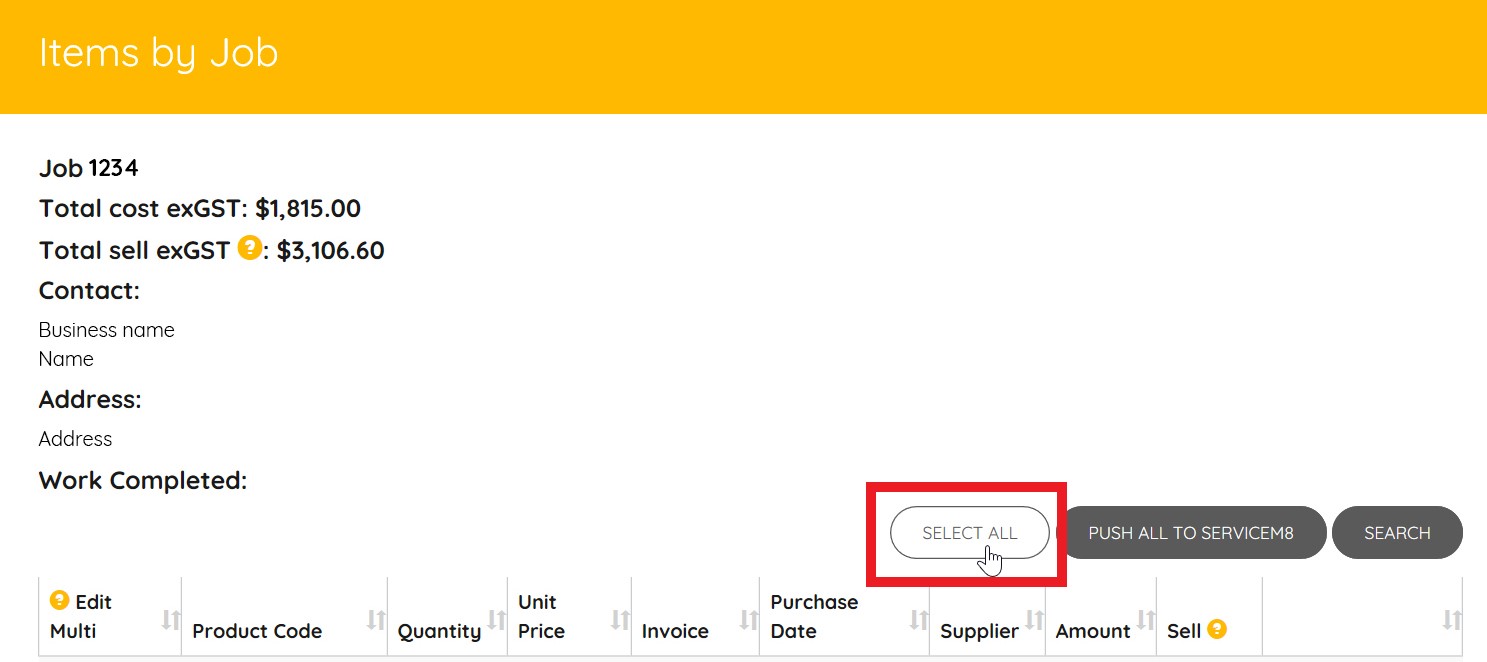
Step 2: Click ‘edit selected’ and change the job number.

Step 3: All done! CLICK HERE TO PUSH TO SERVICEM8!
Related Articles
Changing Job Numbers for Invoices and Individual Materials
Changing Job Numbers Sometimes invoices get sent to the wrong customer job or materials for multiple jobs are listed on the same invoice. You can send all materials on an invoice or individual materials on one invoice to different jobs in ServiceM8. ...Why Auto-generated Numeric Job Numbers Make Sense in ServiceM8
Using Auto-generated Numeric Job Numbers In a busy trade business, efficiency and clarity are key. One simple but powerful way to achieve this is by using plain, auto-generated job numbers in ServiceM8. While it might be tempting to add custom ...What if I accidentally gave my supplier the wrong job number?
Wrong Job Number If the wrong job number has been given to the supplier or if the supplier has made a mistake, you can edit job numbers within Burdi and publish to ServiceM8. Click here to see how to edit job numbers on invoices. Got any questions? ...Materials Profits Per Job
Materials Profits Per Job Use Burdi to know exactly how much profit you made on materials used on jobs. Watch the video below to see how to check your materials profit per job. Watch the video below to check your material profit per job <br>How Burdi Detects Job Numbers from Emailed Invoices & Receipts
How Burdi Detects Job Numbers from Emailed Invoices & Receipts Burdi automatically detects job numbers from email subjects to keep your jobs organised and accurately linked. If the system doesn’t recognise the job number, it may not connect the ...