How to Add Customer Facing Descriptions to Products in The Pitcherbook (Primary Product Bundles)
On Primary Product bundles, customer-facing descriptions allow you to customise how a product appears in the Picture Book without changing the original product description. Instead of displaying the standard supplier or system description, you can enter wording that's clearer, more concise, and more appropriate for your customers. Once a customer-facing description has been added, it is automatically used anywhere that product appears in the Picture Book.
Why use Customer-Facing Descriptions?
Many supplier product descriptions are written for internal use and may include:
- Technical terminology
- Repetitive wording
- Product codes
- Industry abbreviations
Customer-facing descriptions let you replace this with language that's easier for customers to understand.
For example:
Default Product Description
52" DC Ceiling Fan with Integrated CCT LED Light
Customer-Facing Description
Modern 52-inch ceiling fan with energy-efficient DC motor and adjustable LED light
The result is a cleaner, more professional-looking quote.
How to Add a Customer-Facing Description
- Open Burdi.
- Navigate to Products.
- Open the product you want to edit.
- Locate the Customer Description field below the standard product description.
- Enter the wording you want customers to see.
- Click Save.
How It Works
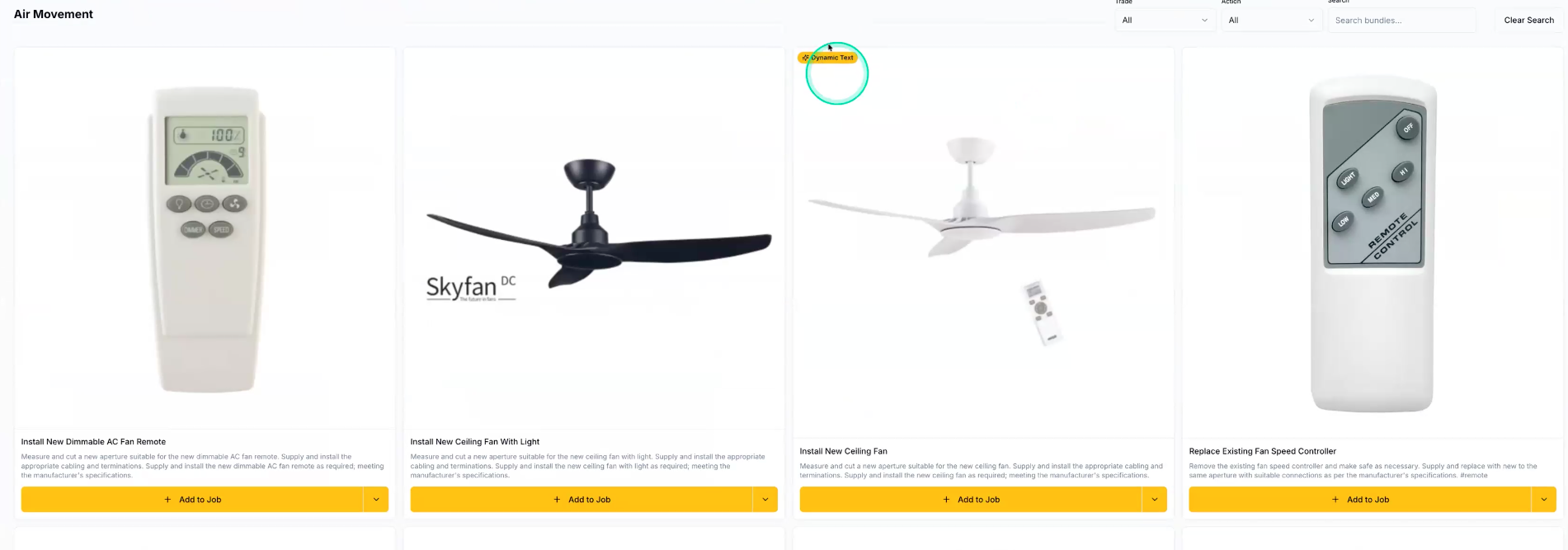
Whenever the PitcherBook loads a bundle with the [customer_description] merge field. The Bundle will display the tag "Dynamic text". If a customer description exists on a the selected primary product, The customer-facing bundle title/description is displayed.
This ensures customers always see the correct wording without requiring manual updates.
Adding Customer Facing Description to the Bundle Description
Related Articles
Why Are My Bundles Missing in the Pitcherbook?
We get asked this question a lot when users are first getting started with the Pitcherbook, so don’t worry — your bundles haven’t disappeared. In most cases, the issue is simply that you’re viewing the wrong environment. How to Check Your Active ...Where Do I Add My Internal Notification Email for Customer Quote Acceptances?
You can set an internal notification email address to receive an email whenever a customer accepts a Pitcherbook quote. You can also customise the message customers see after accepting their quote. How to Add Your Internal Notification Email Open the ...How Do I Refresh My Bundles in the Pitcherbook?
How to Refresh Bundles Click the cog icon in the top right corner of the Pitcherbook. In the modal that appears, click the cog icon in the bottom left corner. Select Refresh Bundles. Your bundles should now reload and update based on the selected ...Why Are Bundles Missing from The Passport In My Pitcherbook? And How to Unlock them
<br>How Do I Use Hashtags as Placeholders?
Supplier product descriptions are usually too technical to put in front of a customer. If you want to display the brand or model on a quote — and force your techs to fill it in before they send the quote — use a hash placeholder in the bundle title ...